Introduction
You take a photo of a white wall and it comes out yellow. A beach shot looks flat and gray, even though the day felt bright and warm. Learning to correct photo colour is one of the most useful editing skills a casual photographer can pick up, because color problems are common, and most of them have a clear cause. This guide explains why colors go wrong, how to diagnose the problem, and which tools, including AI image editing, can help you fix it.
Why Do Photo Colors Go Wrong?
Light Has Its Own Color
Daylight, tungsten bulbs, LEDs, and shade all emit light with different color temperatures. Your eyes adjust automatically, so a white shirt looks white in every room. A camera sensor does not adjust the same way, so it records the tint of the light itself. Indoor bulbs often push images toward orange, while shade can push them toward blue.
Camera Settings and Automatic Decisions
Auto white balance guesses the color of the light and compensates. It usually works, but it can fail in scenes dominated by one color, such as a green forest or a red-walled restaurant. Phone cameras also apply their own processing, which can boost saturation or warm skin tones beyond what you saw.
Screens Do Not All Agree
A photo that looks perfect on your laptop may look different on a phone. Display brightness, color profiles, and night-mode filters all change what you see. Before editing important images, turn off any blue-light or warm-tone filters on your screen.

How Can You Spot a Color Cast?
A color cast is an overall tint across the image. A simple way to check is to find something that should be neutral, such as white paper, a gray road, or a cloud, and look at whether it appears warm, cool, green, or magenta.
Skin tones are another reliable guide. If faces look orange, sickly green, or unnaturally pink, the white balance is probably off. Compare the image with the scene as you remember it, or with a second photo taken under different settings.
How Do You Correct Photo Colour Step by Step?
Start With White Balance
Most editors include a white balance tool with an eyedropper. Click on a neutral area, and the software removes the tint. If nothing in the picture is truly neutral, use the temperature slider (blue to yellow) and the tint slider (green to magenta) by eye.
Adjust Exposure Before Saturation
Dark or washed-out images often look like color problems when the real issue is brightness. Fix exposure and contrast first, then evaluate color. Boosting saturation on an underexposed photo tends to make it look worse.
Refine Individual Colors
Once the overall balance is right, selective tools let you adjust specific hues. You might reduce the orange in skin, deepen a blue sky, or tone down an overly bright green without touching the rest of the image.

Shoot RAW When You Can
RAW files keep more color and brightness information than JPEGs, which gives you more room to change white balance without visible damage. If your camera or phone supports RAW, it is worth using for photos you care about.
What Can AI Image Editing Do for Color?
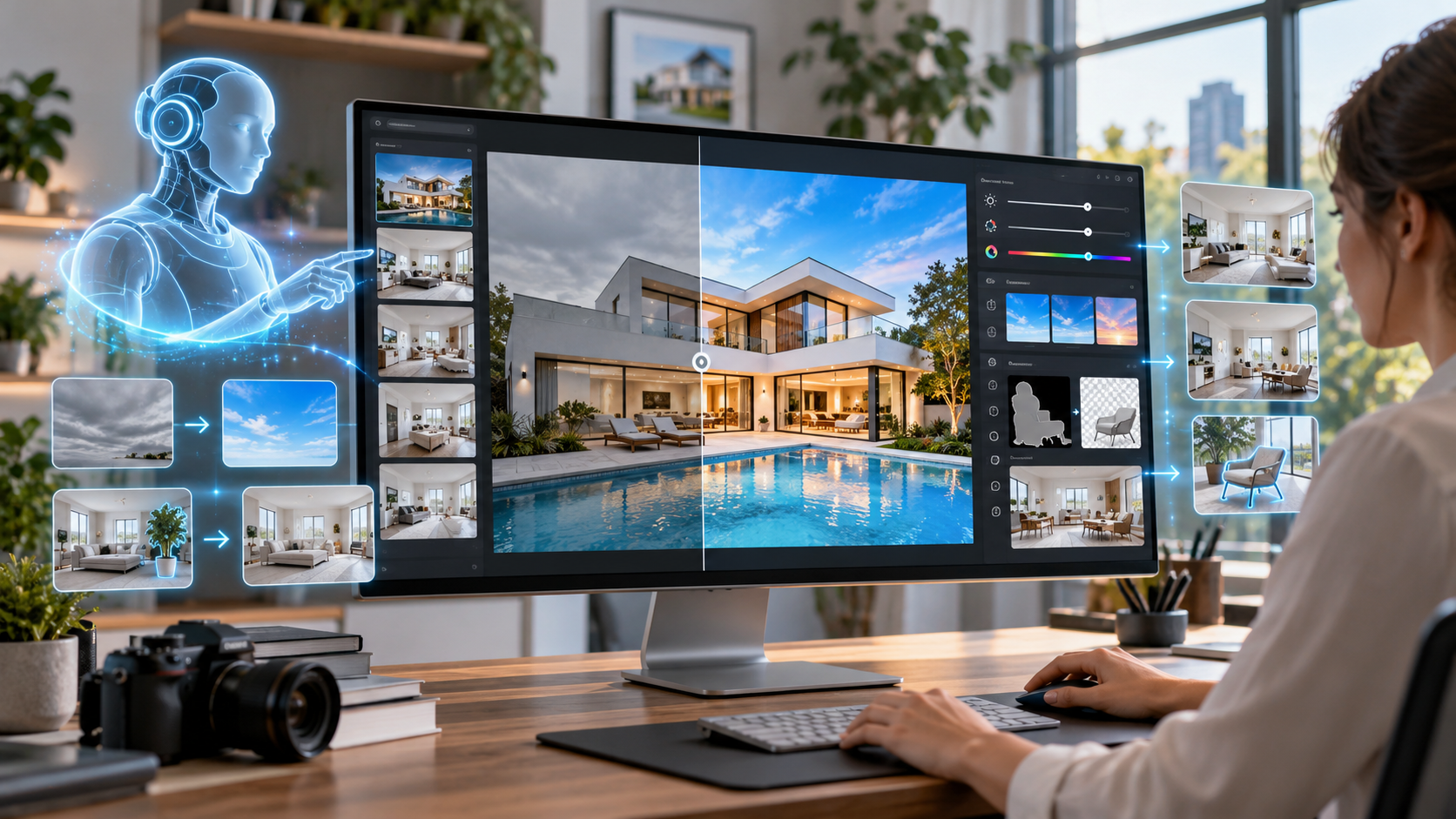
AI image editing tools can analyze a photo and suggest or apply corrections automatically. Common features include auto white balance, one-click enhancement, sky and skin recognition, and the ability to adjust a single object, such as a jacket, without manually selecting it.
These tools save time, especially for batches of similar photos, such as product shots or event pictures. If you want to try an automated approach, you can test [ANCHOR TEXT](TARGET URL) on an image you already know how to fix by hand and compare the result with your own edit.
Where AI Falls Short
Automatic corrections follow general assumptions about what a “good” photo looks like. They may remove a warm sunset glow you wanted to keep or make skin look overly smooth and uniform. Always review the result at full size, and treat the suggestion as a starting point.
Practical Examples
Indoor product photo. A ceramic mug photographed under a warm lamp looks yellow. Use the eyedropper on the white background, then lower saturation slightly so the glaze color matches the real object. Accurate color matters here because buyers expect the item to look as pictured.
Travel snapshot. A photo of a market stall under a blue tarp has a strong cyan cast on faces. Raise the temperature slightly, shift the tint toward magenta, and check skin tones rather than the tarp.
Family photo in the shade. The image appears chilly and little dull. Warm the temperature a little, lift exposure, and add a small contrast boost.
Common Mistakes to Avoid
- Over-saturating. Intense colors look striking for a moment, then unnatural.
- Fixing one area and ignoring the rest. A corrected face next to a bluish background can look pasted in.
- Editing on a dim or tinted screen. Your corrections will be skewed.
- Copying one preset onto every photo. Different lighting needs different adjustments.
Conclusion
To correct photo colour well, start with the light: identify the cast, fix white balance, adjust exposure, then refine individual hues. Automated features can speed up the process, but your eye remains the final check. When skin looks natural, whites look white, and the image matches the moment you remember, the edit is done.