You have a favorite photo on your phone. Maybe it is your dog looking adorable. Maybe it is a breathtaking sunset you captured last summer. You look at that photo and think, “I want to stitch this onto a jacket or a bag.” Then you try to figure out how to make that happen, and you run into a wall. Most digitizing guides assume you are working with simple logos, not complex photographs. Learning how to properly Convert Photo to Embroidery Pattern is a completely different skill, but I promise you can do it. You just need the right approach and a lot of patience.
Photographs do not translate to thread the way logos do. Logos have flat colors, sharp edges, and simple shapes. Photographs have gradients, soft transitions, and millions of tiny details. No embroidery machine on earth can stitch every pixel of a photo. That means you have to simplify. You have to make creative choices. You have to accept that your embroidery pattern will look like an interpretation of your photo, not a photocopy. Let me walk you through the entire process from start to finish so you can turn that precious image into stitchable art.
Understanding What You Are Working With
Before you open any software, you need to accept a hard truth. Embroidery has limits. A photo printed on paper can show millions of colors and subtle shading. Embroidery thread comes in a few hundred solid colors at best. You cannot reproduce a smooth sunset gradient with thread. Cannot stitch individual strands of hair on a portrait. You cannot capture the sparkle in someone’s eye with a needle and thread.
What you can do is capture the essence of a photo. Think of it like a stained glass window. A stained glass version of a photo does not look exactly like the original, but it captures the shapes, the major color areas, and the feeling of the image. That is your goal here. You are creating a thread-based interpretation, not a perfect replica.
The best photos for embroidery have high contrast, simple backgrounds, and clear subject separation. A photo of a single person or animal against a plain wall works great. A chaotic group photo with twenty people and a busy background will turn into an unrecognizable mess. Choose your photo carefully before you invest hours of work.
Step 1: Choose and Prepare Your Photo
Start with the highest resolution version of your photo that you can find. Phone photos from the last few years work fine. Avoid images that look pixelated when you zoom in. Blurry or low-resolution photos produce blurry embroidery patterns.
Open your photo in any basic photo editing software. You do not need Photoshop. Free tools like GIMP or even the built-in editor on your phone work fine. Crop the image to focus on your main subject. Remove as much background clutter as possible. If you want to stitch a portrait of your dog, crop out the couch, the toys, and the messy living room behind them.
Now reduce the color count. This is the most important preparation step. Most photos contain thousands of colors. Your embroidery pattern can only handle maybe ten or fifteen thread colors at most. Use a posterize or color reduction filter to shrink your image down to between eight and fifteen solid colors. Do not worry if the image looks a little blocky or cartoonish after this step. That blockiness is actually what makes it stitchable.
Step 2: Convert to Grayscale for Complex Images
For very complex photos like landscapes or group shots, consider converting to grayscale first. A black and white version of your photo removes the complication of color matching and lets you focus purely on shape and contrast.
Once you have a grayscale image, you can treat it like a coloring book. The darkest areas become black thread. The lightest areas become white thread. Everything in between becomes shades of gray thread. Many embroidery machines support gray thread, or you can substitute other neutral colors like taupe or charcoal.
Grayscale photo embroidery has a beautiful, artistic quality to it. It looks like a pencil sketch made of thread. This approach works especially well for portraits, architectural photos, and nature scenes. Color is not always better. Sometimes the simplicity of black and white thread creates a more striking final product.
Step 3: Import Into Digitizing Software
Now you move your prepared photo into embroidery digitizing software. Several options exist at different price points. Wilcom and Hatch are the professional standards but cost serious money. InkStitch is a free plugin for Inkscape that works surprisingly well for photo conversion. Pulse and Floriani also offer capable photo digitizing tools.
When you import your photo, the software will ask you how you want to convert it. Look for an option called auto-digitize, image trace, or photo stitch. These tools analyze your image and attempt to create stitch paths automatically. For simple logos, auto-digitizing often fails. For photos, it is actually your best starting point because photos have too many details to trace manually.
Set your software to treat your photo as a series of color blocks rather than individual pixels. Most programs offer a simplification slider. Crank that slider up. You want larger, simpler shapes, not tiny scattered stitches. A good photo embroidery pattern should look like a mosaic, not like static on a TV screen.
Step 4: Choose Your Thread Colors Manually
Auto-digitizing software tries to pick thread colors automatically, and it usually picks wrong. The software does not understand that the dark blue in your photo should actually be navy thread, not royal blue. It does not know that skin tones require specific blends of tan, peach, and brown.
So take control of color selection manually. Most digitizing software lets you assign specific thread colors from specific brands. Choose a thread brand you actually have access to. Madeira, Isacord, and Robison-Anton are common choices. If you pick a color that only exists in a brand you do not own, you will never be able to stitch the design.
Match your thread colors to the simplified colors in your prepared photo. Hold physical thread spools up to your screen if you can. Screens show colors differently than real thread does under natural light. What looks like a perfect match on your monitor might look completely wrong on fabric. When in doubt, go one shade darker than you think you need. Dark thread reads better on most fabrics than light thread does.
Step 5: Simplify Shapes and Eliminate Noise
Look at what your software generated. I guarantee it looks messy. Auto-digitizing produces thousands of tiny random stitches in areas where your photo has texture or noise. Leaves in a tree become chaotic green scribbles. A grassy field becomes a tangled mess of different green directions.
Go through your design manually and eliminate that noise. Select small stitch clusters and delete them. Merge neighboring shapes that use the same thread color. Smooth out jagged edges. Your photo embroidery pattern should use the fewest possible stitch objects to represent the image.
This manual cleanup takes time. A complex photo might take two or three hours to clean up properly. Do not rush this step. The difference between a messy auto-digitized photo and a cleaned manual version is the difference between art and garbage. Take your time and make each shape intentional.
Step 6: Choose Appropriate Stitch Types
Photos require different stitch types than logos do. Large background areas should use tatami fill stitches with a consistent angle. Skin tones look best with satin stitches following the contours of the face. Hair benefits from running stitches that flow in the direction of the hair growth.
Do not use the same stitch type for everything. That creates a flat, boring look. Vary your stitch angles to suggest form and shadow. For a round object like an apple, use concentric circle fills. For a flowing river, use horizontal satin columns that ripple like water. Let your stitch angles tell the same story your photo tells.
For portraits, pay special attention to eyes and mouths. These features are tiny in embroidery terms. Digitize them as separate objects with high density and precise placement. A poorly digitized eye makes an entire portrait look wrong. Zoom in to maximum magnification when you position these critical small features.
Step 7: Test Sew on Scrap Fabric
You cannot skip the test sew. I know you want to. I know you are excited to see your photo come to life. But testing on scrap fabric first saves you from ruining your good jacket or bag.
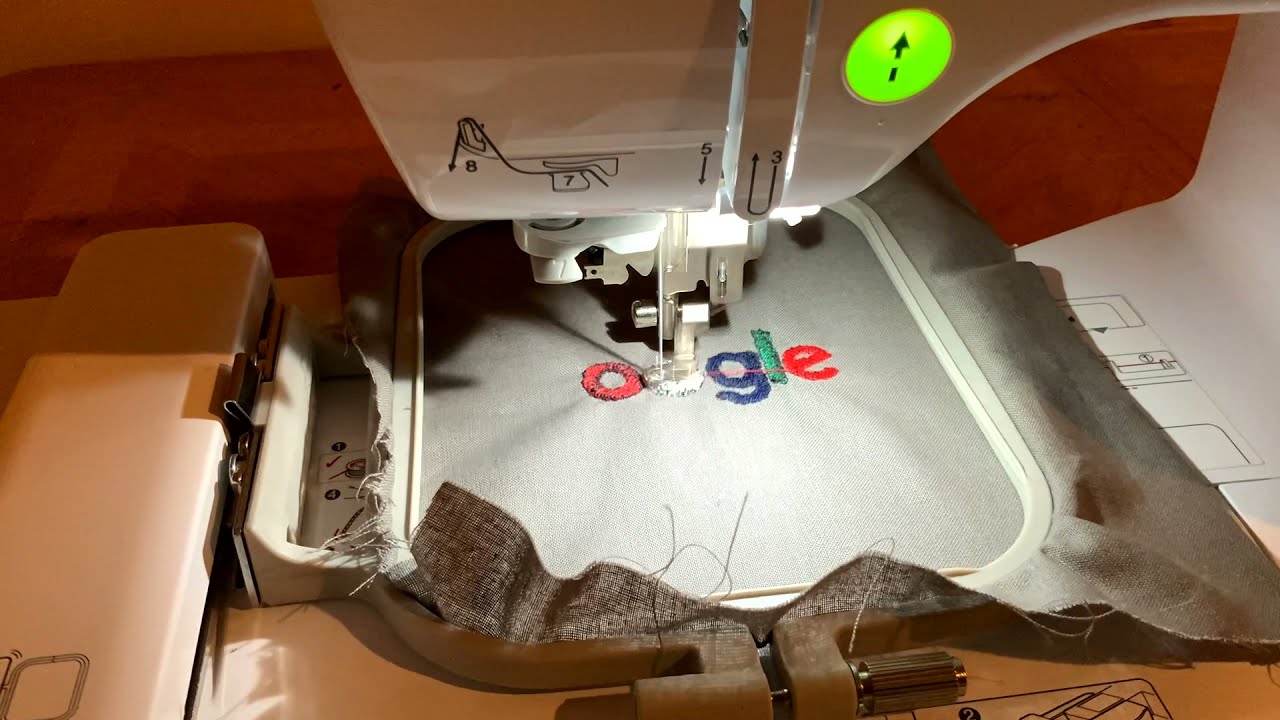
Sew your photo pattern on a piece of fabric similar to your final fabric. Use the same stabilizer and the same thread you plan to use for the real project. Examine the test result under good light. Look for areas where the colors clash or the stitches look muddy. Pay attention to any spots where the design does not look like the original photo.
Make notes directly on your test sew with a fabric marker. Circle problem areas. Write down what needs to change. Then go back into your digitizing software and fix those specific problems. Run another test. Repeat until the test sew makes you smile.
Conclusion
Converting a photo to an embroidery pattern is not magic, but it is also not easy. You need the right software, the right preparation steps, and a willingness to do manual cleanup. Start with a simple, high-contrast photo. Reduce your colors aggressively. Let auto-digitizing do the heavy lifting, then take over manually to fix what the software got wrong. Test on scrap fabric until the design looks right.
The results are worth the effort. A custom embroidered photo on a jacket or bag becomes a conversation starter. It carries meaning that a generic logo never can. That is the magic of photo embroidery. It turns a machine into a storytelling tool. Now go find your favorite photo and start converting. Your needle is waiting.